
Now that we have both GnuPG and SSH securely set up, we’re able to encrypt, decrypt, sign, and verify messages, and securely authenticate to remote servers without any risk of exposing passwords and with effectively zero possibility of a brute-force attack. This is all great, but there’s still one more weak link in the chain with which to deal — our passphrases.
If you use these tools often, typing your passphrase for most operations can get annoying. It may be tempting to either include a means of automating the passphrase entry, or not to use a passphrase at all, leaving your private key unencrypted. As security-conscious users, we definitely want to avoid the latter in case our private key file ever gets stolen, which is where the concepts of agents for both SSH and GnuPG comes into play.
An agent is a daemon designed to streamline the process of using decrypted private keys by storing the details securely in memory, ideally for a limited period of time. What this allows you do with both SSH and GnuPG is to type your passphrase just once, and subsequent uses that require the unencrypted private key are managed by the agent.
In this article, we’ll go through the basics of agent setup for both SSH and GnuPG. Once we know how they work, we’ll then introduce a convenient tool to start both of them and manage them for us easily.
SSH agents
The ssh-agent(1) program comes as part of the OpenSSH suite. It
can be run in two modes, either as a parent process, or daemonized into the
background. We’ll discuss the latter method, as it’s more commonly used and
more flexible.
Setup
When we run ssh-agent(1) for the first time, its behavior is curious; it
appears to do nothing except spit out some cryptic shell script:
$ ssh-agent
SSH_AUTH_SOCK=/tmp/ssh-EYqoH3qwfvbe/agent.28881; export SSH_AUTH_SOCK;
SSH_AGENT_PID=28882; export SSH_AGENT_PID;
echo Agent pid 28882;
However, we can see that the daemon is running with the PID it mentions:
$ ps 28882
  PID TTY      STAT   TIME COMMAND
28882 ?        Ss     0:00 ssh-agent
So if it’s running fine, what’s with all the shell script it outputs? Why doesn’t it just run that for us?
The answer is an interesting workaround to a stricture of the Unix process
model; specifically, a process cannot modify its parent environment. The
variables SSH_AUTH_SOCK and SSH_AGENT_PID are designed to allow programs
like ssh(1) to find the agent so it can communicate with it, so we definitely
need them set. However, if ssh-agent(1) were to set these variables itself,
it would only apply for its own process, not the shell where we called it.
Therefore, not only do we need to run ssh-agent(1), we need to execute the
code it outputs so the variables get assigned in our shell. A good method of
doing this in Bash is using eval and command substitution with $(...):
$ eval "$(ssh-agent)"
Agent 3954
If we run this, we can see that not only is ssh-agent(1) running, we have two
new variables in our environment identifying its socket path and process ID:
$ pgrep ssh-agent
3954
$ env | grep ^SSH
SSH_AUTH_SOCK=/tmp/ssh-oF1sg154ygSt/agent.3953
SSH_AGENT_PID=3954
With this done, the agent is ready, and we can start using it to manage our keys for us.
Usage
The next step is to load our keys into the agent with ssh-add(1). Pass
this program the full path to the private key you would like to use with the
agent. This is likely either ~/.ssh/id_rsa or ~/.ssh/id_dsa:
$ ssh-add ~/.ssh/id_rsa
Enter passphrase for /home/tom/.ssh/id_rsa:
Identity added: /home/tom/.ssh/id_rsa (/home/tom/.ssh/id_rsa)
You can leave out the filename argument if you want ssh-add to add any or all
of the default key types in ~/.ssh if they exist (id_dsa, id_rsa,
and id_ecdsa):
$ ssh-add
Either way, you should be prompted for your passphrase; this is expected, and you should go ahead and type it in.
If we then ask ssh-add(1) to list the keys it’s managing, we see the key we
just added:
$ ssh-add -l
4096 87:ec:57:8b:ea:24:56:0e:f1:54:2f:6b:ab:c0:e8:56 /home/tom/.ssh/id_rsa (RSA)
With this done, if we try to use this key to connect to another server, we no longer need to provide the passphrase; we’re just logged straight in:
tom@local:~$ ssh remote
Welcome to remote.sanctum.geek.nz, running GNU/Linux!
tom@remote:~$
The default is to maintain the keys permanently, until the agent is stopped or
the keys are explicitly removed one-by-one with ssh-add -d <keyfile> or all
at once with ssh-add -D. For the cautious, you can set a time limit in
seconds with ssh-add -t. For example, to have ssh-add forget about your
keys after two hours, you might use:
$ ssh-add -t 7200 ~/.ssh/id_rsa
To kill the agent completely, you can use ssh-agent -k, again with an eval
$(...) wrapper:
$ eval "$(ssh-agent -k)"
Agent pid 4501 killed
You may like to consider adding this to ~/.bash_logout or a similar script to
get rid of the running agent after you’re done with your session.
Permanent setup
If you like this and find it makes your key management more convenient, it
makes sense to put it into a startup script like ~/.bash_profile. This way,
the agent will be started for each login shell, and we will be able to
communicate with it from any subshell (xterm, screen, or an appropriately
configured tmux):
eval "$(ssh-agent)"
ssh-add ~/.ssh/id_rsa
On our next TTY login, we should be prompted for a passphrase, and from there be able to connect to any machine using the keys managed by the agent:
tom@local:~$ ssh remote
Welcome to remote.sanctum.geek.nz, running GNU/Linux!
If you want this to work for a desktop manager like GDM or XDM, you can add a
variable pointing to the ssh-askpass(1) program:
eval $(ssh-agent)
export SSH_ASKPASS=/usr/bin/ssh-askpass
ssh-add ~/.ssh/id_rsa
If SSH_ASKPASS is set like this and DISPLAY refers to a working display,
then a simple graphical prompt will appear asking for your passphrase:
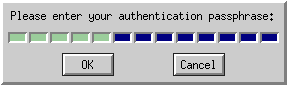
This program may need to be installed separately. Under Debian-derived systems,
its package name is ssh-askpass.
All child processes and subshells of the login shell will inherit the agent’s
variables, since they were exported with export:
tom@local:~$ screen
tom@local:~$ tmux bash
tom@local:~$ bash
tom@local:~$ ssh remote
Welcome to remote.sanctum.geek.nz, running GNU/Linux!
tom@remote:~$
We thus have to type our passphrase only once per login session, and can connect to all of the servers to which our keys confer access … very convenient!
GnuPG Agents
Just like ssh-agent(1), there exists an agent for managing GnuPG keys too,
called gpg-agent(1). Its behavior is very similar. On Debian-derived
systems, it can be installed as the gnupg-agent package. You should
also install a pinentry program; as we’re focussing on learning the nuts and
bolts on the command line here, we’ll use pinentry-curses(1) for a
console-based passphrase prompt:
# apt-get install gnupg-agent pinentry-curses
Setup
We’ll start the agent using the same eval $(...) trick we learned with
ssh-agent:
$ eval "$(gpg-agent --daemon)"
We can verify that the agent is running in the background with the given PID, and that we have a new environment variable:
$ pgrep gpg-agent
5131
$ env | grep ^GPG
GPG_AGENT_INFO=/tmp/gpg-hbro8r/S.gpg-agent:5131:1
We’ll also set GPG_TTY, which will help the pinentry program know on which
terminal to draw its passphrase request screen:
$ export GPG_TTY=$(tty)
$ echo $GPG_TTY
/dev/pts/2
Finally, to prod gpg(1) into actually using the agent, we need to add a line
to ~/.gnupg/gpg.conf. You can create this file if it doesn’t exist.
use-agent
Usage
With this done, if we try to do anything requiring our private key, we should be prompted for a passphrase not directly on the command line, but by our PIN entry program:
$ gpg --armor --sign message1.txt

┌──────────────────────────────────────────────────────────┐
│ You need a passphrase to unlock the secret key for user: │
│ "Thomas Ryder (tyrmored, tejr) <tom@sanctum.geek.nz>"    │
│ 4096-bit RSA key, ID 25926609, created 2013-03-12        │
│ (main key ID 77BB8872)                                   │
│                                                          │
│                                                          │
│ Passphrase ***__________________________________________ │
│                                                          │
│       <OK>                                 <Cancel>      │
└──────────────────────────────────────────────────────────┘
When we enter the passphrase, our operation is performed:
$ ls message1*
message1.txt
message1.txt.asc
Afterwards, if we perform another option requiring the private key, we see that we are not prompted:
$ gpg --armor --sign message2.txt
$ ls message2*
message2.txt
message2.txt.asc
The agent has thus cached the private key for us, making it much easier to
perform a series of operations with it. The default timeout is 10 minutes, but
you can change this with the default-cache-ttl and max-cache-ttl settings
in ~/.gnupg/gpg-agent.conf. For example, to retain any private key for one
hour after its last use and a maximum of two hours from its first use, we could
write:
default-cache-ttl 3600
max-cache-ttl 7200
Changing these values will require prompting the agent to reload:
$ gpg-connect-agent <<<RELOADAGENT
OK
Permanent setup
Just like ssh-agent(1), an ideal place for gpg-agent(1)‘s startup lines is
in a login shell setup script like ~/.bash_profile:
eval "$(gpg-agent --daemon)"
The agent will be started, and all of its environment variables will be set and
inherited by all subshells, just as with ssh-agent.
If you’re using the console PIN entry tool, you should also add this to end of
your interactive shell startup script. This should be ~/.bashrc for Bash on
Linux; you may need to put it in ~/.bashrc on Mac OS X.
export GPG_TTY=$(tty)
Keychain
To manage both ssh-agent(1) and gpg-agent(1) effectively, a tool called
keychain(1) is available. It provides a simple way to start both
agents with one command, including loading keys at startup, and also prevents
running either agent twice, picking up on agents started elsewhere on the
system. Because desktop environments are often configured to start one or both
agents for users, it makes sense to re-use them where possible, at which
keychain(1) excels.
On Debian-derived systems, the program is available in the keychain
package:
# apt-get install keychain
With keychain installed, we can start both agents with just one command in
~/.bash_profile:
eval "$(keychain --eval)"
We can optionally include the filenames of SSH keys in ~/.ssh or the hex IDs
of GnuPG keys as arguments to prompt loading the private key (including
requesting the passphrase) at startup:
eval "$(keychain --eval id_rsa 0x77BB8872)"
If this program is available to you, then I highly recommend this; managing
agents and environments can be fiddly, and keychain(1) does all the hard work
for you in this regard so you don’t have to worry about whether an agent is
available to you in your particular context. Check out the project’s
homepage for more information about the tool.