
A certain piece of very misleading advice is often given online to users having
problems with the way certain command-line applications are displaying in their
terminals. This is to suggest that the user change the value of their TERM
environment variable from within the shell, doing something like this:
$ TERM=xterm-256color
This misinformation sometimes extends to suggesting that users put the forced
TERM change into their shell startup scripts. The reason this is such a bad
idea is that it forces your shell to assume what your terminal is, and thereby
disregards the initial terminal identity string sent by the emulator. This
leads to a lot of confusion when one day you need to connect with a very
different terminal emulator.
Accounting for differences
All terminal emulators are not created equal. Certainly, not all of them are
xterm(1), although many other terminal emulators do a decent but not
comprehensive job of copying it. The value of the TERM environment variable
is used by the system running the shell to determine what the terminal
connecting to it can and cannot do, what control codes to send to the program
to use those features, and how the shell should understand the input of certain
key codes, such as the Home and End keys. These things in particular are
common causes of frustration for new users who turn out to be using a forced
TERM string.
Instead, focus on these two guidelines for setting TERM:
Avoid setting
TERMfrom within the shell, especially in your startup scripts like.bashrcor.bash_profile. If that ever seems like the answer, then you are probably asking the wrong question! The terminal identification string should always be sent by the terminal emulator you are using; if you do need to change it, then change it in the settings for the emulator.Always use an appropriate
TERMstring that accurately describes what your choice of terminal emulator can and cannot display. Don’t make anrxvt(1)terminal identify itself asxterm; don’t make alinuxconsole identify itself asvt100; and don’t make anxterm(1)compiled without 256 color support refer to itself asxterm-256color.
In particular, note that sometimes for compatibility reasons, the default
terminal identification used by an emulator is given as something generic like
xterm, when in fact a more accurate or comprehensive terminal identity file
is more than likely available for your particular choice of terminal emulator
with a little searching.
An example that surprises a lot of people is the availability of the putty
terminal identity file, when the application defaults to presenting itself as
an imperfect xterm(1) emulator.
Configuring your emulator’s string
Before you change your terminal string in its settings, check whether the default it uses is already the correct one, with one of these:
$ echo $TERM
$ tset -q
Most builds of rxvt(1), for example, should already use the correct TERM
string by default, such as rxvt-unicode-256color for builds with 256 colors
and Unicode support.
Where to configure which TERM string your terminal uses will vary depending
on the application. For xterm(1), your .Xresources file should contain
a definition like the below:
XTerm*termName: xterm-256color
For rxvt(1), the syntax is similar:
URxvt*termName: rxvt-unicode-256color
Other GTK and Qt emulators sometimes include the setting somewhere in
their preferences. Look for mentions of xterm, a common fallback default.
For Windows PuTTY, it’s configurable under the ”’Connections > Data”’ section:
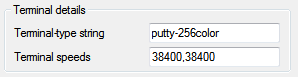
More detail about configuring PuTTY for connecting to modern systems can be found in my article on configuring PuTTY.
Testing your TERM string
On GNU/Linux systems, an easy way to test the terminal capabilities (particularly
effects like colors and reverse video) is using the msgcat(1) utility:
$ msgcat --color=test
This will output a large number of tests of various features to the terminal, so that you can check their appearance is what you expect.
Finding appropriate terminfo(5) definitions
On GNU/Linux systems, the capabilities and behavior of various terminal types is
described using terminfo(5) files, usually installed as part of the
ncurses package. These files are often installed in /lib/terminfo or
/usr/share/terminfo, in subdirectories by first letter.
In order to use a particular TERM string, an appropriate file must exist in
one of these directories. On Debian-derived systems, a large collection of
terminal types can be installed to the system with the ncurses-term
package.
For example, the following variants of the rxvt terminal emulator are all
available:
$ cd /usr/share/terminfo/r
$ ls rxvt*
rxvt-16color  rxvt-256color  rxvt-88color  rxvt-color  rxvt-cygwin
rxvt-cygwin-native  rxvt+pcfkeys  rxvt-unicode-256color  rxvt-xpm
Private and custom terminfo(5) files
If you connect to a system that doesn’t have a terminfo(5) definition to
match the TERM definition for your particular terminal, you might get a
message similar to this on login:
setterm: rxvt-unicode-256color: unknown terminal type
tput: unknown terminal "rxvt-unicode-256color"
$
If you’re not able to install the appropriate terminal definition system-wide,
one technique is to use a private .terminfo directory in your home directory
containing the definitions you need:
$ cd ~/.terminfo
$ find
.
./x
./x/xterm-256color
./x/xterm
./r
./r/rxvt-256color
./r/rxvt-unicode-256color
./r/rxvt
./s
./s/screen
./s/screen-256color
./p
./p/putty-256color
./p/putty
You can copy this to your home directory on the servers you manage with a tool
like scp:
$ scp -r .terminfo server:
TERM and multiplexers
Terminal multiplexers like screen(1) and tmux(1) are special
cases, and they cause perhaps the most confusion to people when inaccurate
TERM strings are used. The tmux FAQ even opens by saying that most of
the display problems reported by people are due to incorrect TERM settings,
and a good portion of the codebase in both multiplexers is dedicated to
negotiating the differences between terminal capacities.
This is because they are “terminals within terminals”, and provide their own
functionality only within the bounds of what the outer terminal can do. In
addition to this, they have their own type for terminals within them; both of
them use screen and its variants, such as screen-256color.
It’s therefore very important to check that both the outer and inner
definitions for TERM are correct. In .screenrc it usually suffices to use
a line like the following:
term screen
Or in .tmux.conf:
set-option -g default-terminal screen
If the outer terminals you use consistently have 256 color capabilities, you
may choose to use the screen-256color variant instead.
If you follow all of these guidelines, your terminal experience will be much
smoother, as your terminal and your system will understand each other that much
better. You may find that this fixes a lot of struggles with interactive tools
like vim(1), for one thing, because if the application is able to
divine things like the available color space directly from terminal information
files, it saves you from having to include nasty hacks on the t_Co variable
in your .vimrc.