
watch is one of those Unix tools which does something very simple, but combined with other tools has a myriad of uses. While there are a few useful features or switches for watch, its central concept is simple; it runs something for you repeatedly, and shows the output on the screen.
The reason this becomes so useful in a system administration context is that when used with a terminal multiplexer, watch can be used to track the progress of any particular task, or to monitor system resources, as you work and change things. Some examples of simple but useful monitoring tasks are:
- Load average —
watch uptime - Disk space —
watch df -h - Process count —
watch 'ps -ef | wc -l' - Memory usage —
watch free -m - Size of a volatile file —
watch du -sh filename.sh
Of course, it’s not a terribly good use of an administrator or developer’s time to just sit there and watch these change, particularly if you want to make changes to the system or application and see how they affect the results of your monitoring. This is where a terminal multiplexer like tmux comes in handy, for putting instances of watch and other more complex monitoring tools like htop or tload into independent panes of a terminal window so you can work as you watch them.
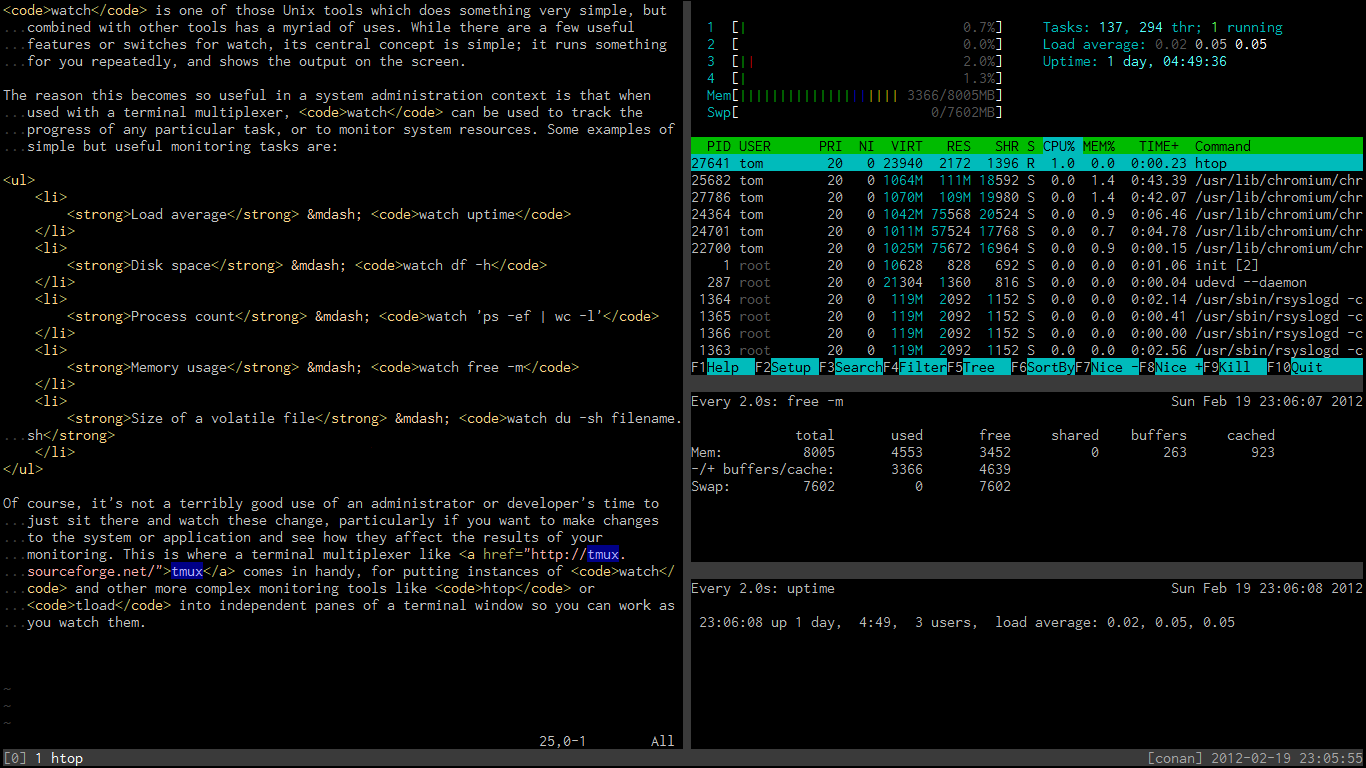
You can set these windows up using the usual key combinations, but if you have a long string of text or a known command that you want to start running in another window, it’s often easier to call the relevant tmux commands directly from the shell:
$ watch uptime $ tmux split-window -dh "!!"
This will split the window into two parts, and run watch uptime in the new one, while leaving your cursor in the original window.
If you find yourself doing this often, you could make it into a shell function in your .bashrc or similar:
function tmw {
tmux split-window -dh "$*"
}
You can then quickly run things like the following, as a kind of general method to background a monitoring or long-running task quickly:
$ tmw watch uptime $ tmw htop $ tmw rsync -arvz source::mnt/location /home/tom/destination
Thanks to user WishCow for pointing out an error in the comments.

Awesome tip. Went straight into my zshrc
Glad it’s useful!
Back in my day, we would simply:
while :; do uptime; sleep 5; clear; done
You didn’t have your fancy-shmancy “watch”.
You didn’t have your fancy-schmancy
-doption for it either, to show changes in output from successive runs :)Thanks again for the post, man! I hope they never stop.
I will be posting daily until the end of February; three times a week thereafter. Glad you’re enjoying the material!
The example for the bash function is wrong, you cannot leave out the parenthesis when defining a function, and due to the special way of “$@” expansion, you must also save it to a temporary variable, otherwise using it with multiple words (like in the example, tmw watch uptime) won’t work, at least it doesn’t for me.
This version however does:
tmw() {
local ARGS=”$@”
tmux split-window -dh “$ARGS”
}
It’s a great idea, thanks for the tip, I have incorporated it into my .bashrc.
Hi WishCow; thanks for this — looks like I accidentally left in an older attempt at doing this and forgot to paste in my working one that fixes what you’ve mentioned here. Your version is great, but another possibility (which I’ve just fixed the post for) is as follows:
function tmw { tmux split-window -dh "$*" }That is, using
$*instead of$@.Incidentally, there appears to be no problem omitting the parentheses in my version of Bash.
This was quite a bad mistake on my part so I’m very grateful, I’ve given you a footnote. :)
Ah yes, I totally forgot that $* exists, that’s an even nicer solution.
You are also correct on the parenthesis part, by habit I wrote it like this:
tmw {
}
Which is of course wrong, but prefixing it with function works.
Nice stuff. I’ve been using dvtm rather than tmux. I don’t need to detach/reattach sessions, and I love that it’s built on top of dwm’s window management engine. It’s like a tiling window manager for the console. A lot of those things that you’ve scripted up functions and commands for are merely hot keys in dvtm: ‘-c watch free -m’, for example.
That’s command-key+c. WordPress ate my greater than/less than.
I’m still using Xfce at the moment as a GNOME 3 refugee, but dwm is looking better and better now. This might actually make me switch. For the moment though, tmux is definitely a step up from GNU Screen for me.
The thing that sucks about GNOME 3 is that you can’t drop in your own WM. I suspect that you will like dwm (and the whole suckless tool chain), but don’t forget Awesome and xmonad. I’m using xmonad + GNOME 2 right now, and am trying to evaluate my new desktop destination as well. Probably LXDE or XFCE plus xmonad or Awesome. I feel unproductive on systems without tiling window managers now that I’m used to them.